Inspect an assembly: parts list, clashes and mass
Bill of materials
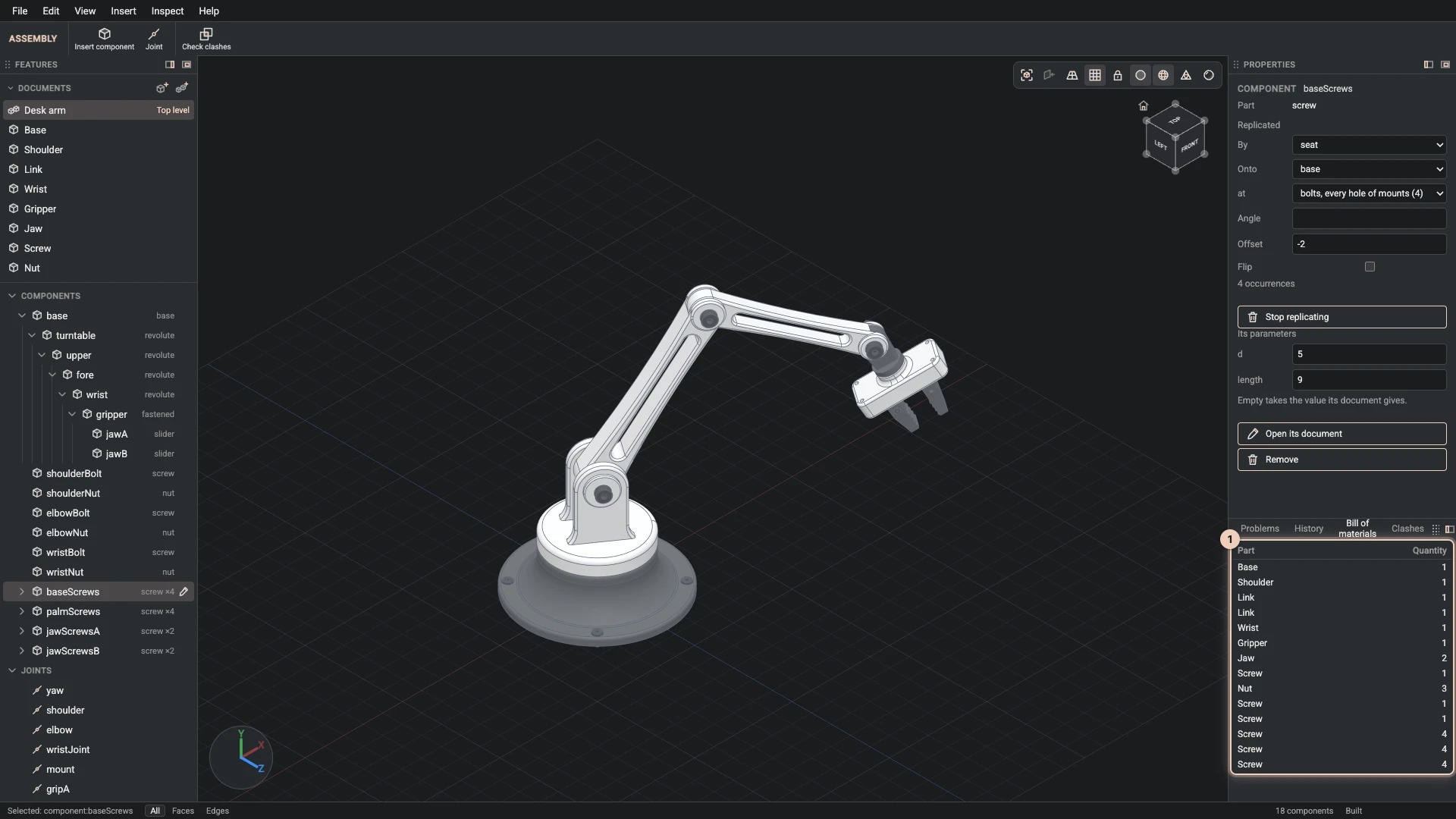
The dock's Bill of materials tab lists every part the assembly places, with its Quantity, counted through every sub-assembly, replicate and pattern. It follows the assembly as you change it.
A part placed at different sizes is a different part to make, so it has a line for each: the desk arm's long upper arm and short forearm come from one link document, and are two lines. The same goes for the screws of different lengths.
Check clashes
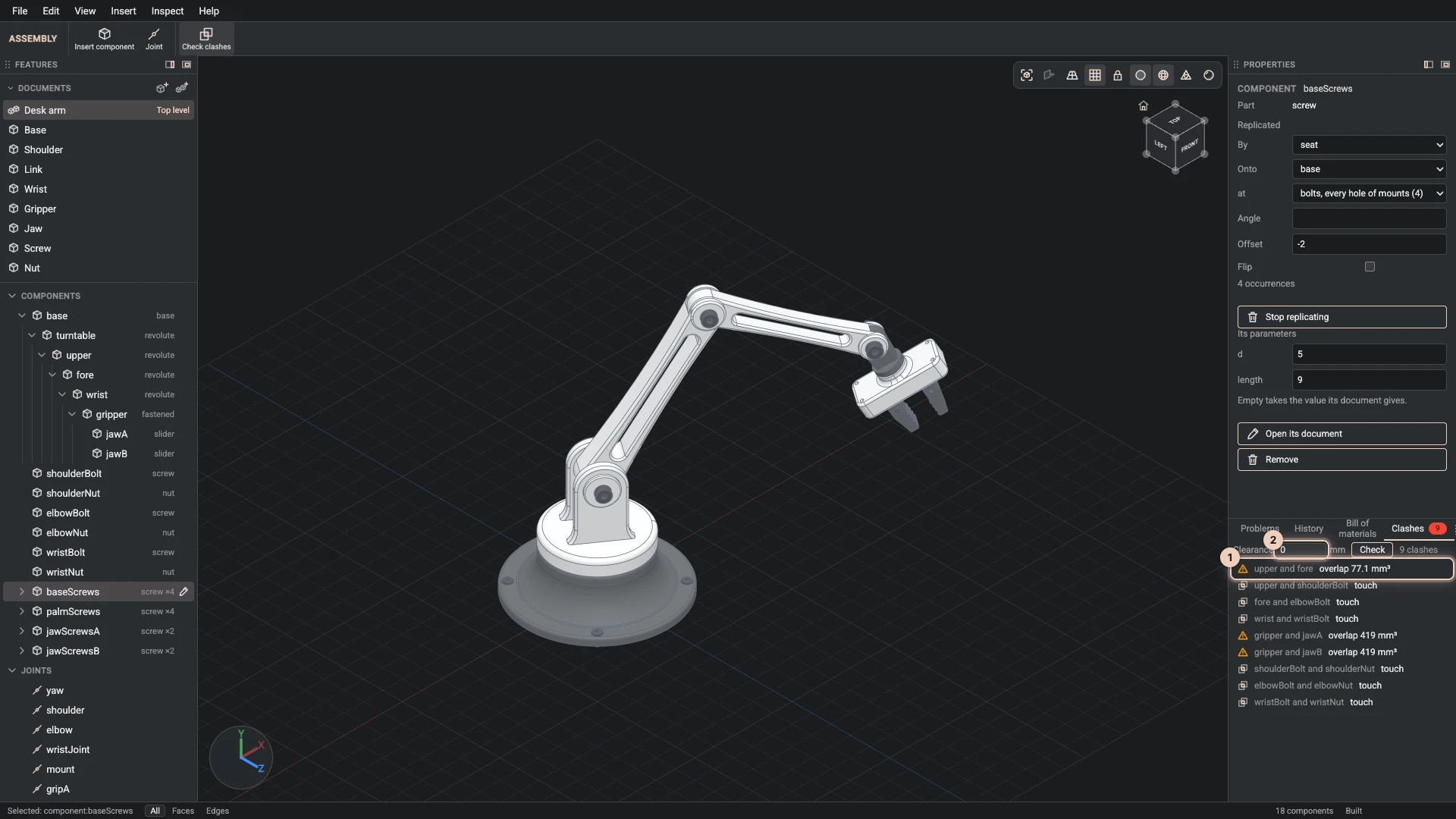
Check clashes, in Inspect, on the toolbar or in the dock's Clashes tab, builds the assembly as it stands and lists every pair of parts that:
- overlap, with the volume they share, which is almost always a mistake;
- touch, which can be right, such as a screw head on its seat;
- come closer than the Clearance you set, in the document's length unit. With 0, only overlaps and touches are listed.
A touch that a joint asks for, two parts meeting at their connectors, is left out, and so is a screw's thread resting in a tapped hole, with the hole's rim and the screw's end chamfer around it, joint or not; a head sitting on the plate, or anything else the two meet at, is still listed. Click a clash to see the two parts in the view. Check again after a change: the list shows the assembly as it was when you checked, in the pose it was in, so try each configuration that matters.
Sweep clashes through a motion
A check sees one pose. Sweep clashes, in Inspect, or Sweep in the dock's Clashes tab, checks the assembly at even steps of a parameter from its least to its most value, so parts that collide only part way through a motion are found: a rod against the crankcase at one crank angle, a jaw against the base at full reach. Choose the parameter in Through; any parameter with a min and a max can be swept, and the clearance applies at every step.
Each pair is listed once, with its worst overlap, and with the values where it clashes, such as "at crank 90°, 100°". An angle whose range covers a whole turn is not checked twice where it starts again. The dock sweeps in 24 steps; agents run assembly.sweepClashes with the parameter's name and up to 360 steps. One check runs at a time, and Stop in the dock, or Inspect > Stop sweeping, ends a sweep before its last step. A sweep of a motion that plays well is the check to run before a part is made.
Volume and mass
Select a part in its part document to see its volume, and its mass from its material's density.
Measure
Pick a face or an edge and the selection panel measures it: an edge's length, a face's area, and the radius and diameter of a circle, a cylinder or a sphere, with a circle's centre. Shift+click a second one and it measures the shortest distance between them, drawn as a line in the view when they do not touch, with its parts along X, Y and Z, and the angle between two flat faces or two straight edges. In an assembly, picks on different parts are measured where the assembly places them.
Measure, in Inspect or on the toolbar, puts the same values in the status bar, and agents run it as view.measure. It works in part documents too, and visitors who open a shared design can measure it.
Section view
Section view, in Inspect, on the toolbar or on X, cuts the view with a plane so you can look inside. It starts square to the axis you look along, through the middle of the model, and hides the half nearer to you.
The section bar at the bottom of the view sets it: X, Y or Z stands the plane square to that axis, the slider or a typed offset in the document's length unit moves it, Flip hides the other side, and Close turns it off. Where the plane cuts a part, the cut is filled in a darker shade of the part's colour; it is the kernel's own cut, so it shows holes and walls exactly, and it follows the plane once the plane stops moving.
Clicks, hovers and measurements reach only what is shown: a click lands on what you see through the cut, and a filled cut takes no pick. A section changes the view, never the document, and goes off when another document opens. Agents run it as view.section with axis, offset, flip or off, and visitors who open a shared design can use it too.
Verified against the product in October 2026